What Counts as a Roblox AI Plugin?
A Roblox AI plugin is any AI helper that hooks into your Roblox Studio workflow — generating scripts, building models, writing dialog, or answering API questions without leaving the editor. In 2026 that covers three things people actually mean when they search for one: Roblox's built-in Assistant, third-party plugins from the Creator Store, and browser-based AI builders that export .rbxlx files into Studio.

This guide covers all three, how to install plugins safely, and which Roblox AI helper fits each kind of project. For the broader picture of AI inside Studio, see our Roblox Studio AI guide.
Option 1: Roblox Assistant — the Built-In AI Helper
Before installing anything, know that Studio ships with an AI helper. Roblox Assistant sits in its own panel, can read your selected instances, generate and insert scripts, build simple models, and explain code. It's free, first-party, and always current with Roblox's APIs.
Where it shines: one-off scripts, "why doesn't this work?" questions, material and lighting suggestions.
Where it stops: multi-script systems, full game generation, and anything that needs sustained memory of your project's design.
Option 2: Third-Party AI Plugins from the Creator Store
The Creator Store lists community-built AI plugins for scripting help, building assistance, texture generation, and NPC dialog. Quality varies a lot, so evaluate before you trust one:
- Check reviews and update dates. Roblox APIs evolve; an AI plugin that hasn't updated in a year will suggest deprecated calls.
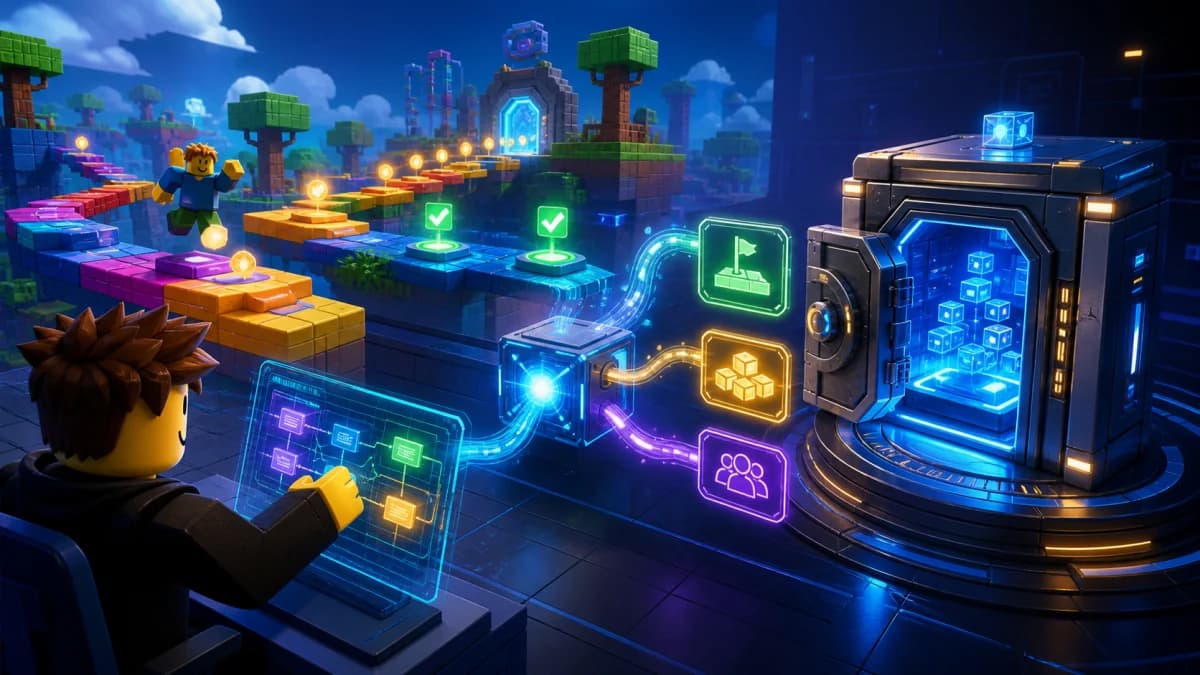
- Mind the API key model. Many third-party plugins ask for your own OpenAI or Anthropic API key — fine in principle, but only paste keys into plugins from developers you trust.
- Watch script-injection permissions. Studio warns when a plugin wants to modify scripts. That permission is necessary for an AI scripting helper, but it's also the permission malware abuses — install AI plugins only from reputable creators.
How to Install a Roblox Studio Plugin
- Open the Creator Store tab inside Studio (or the Toolbox → Plugins section)
- Search for the plugin and click Install
- Grant or deny permissions when prompted — read what it asks for
- Find the plugin's buttons in the Plugins ribbon tab

Option 3: AI Builders That Export Into Studio
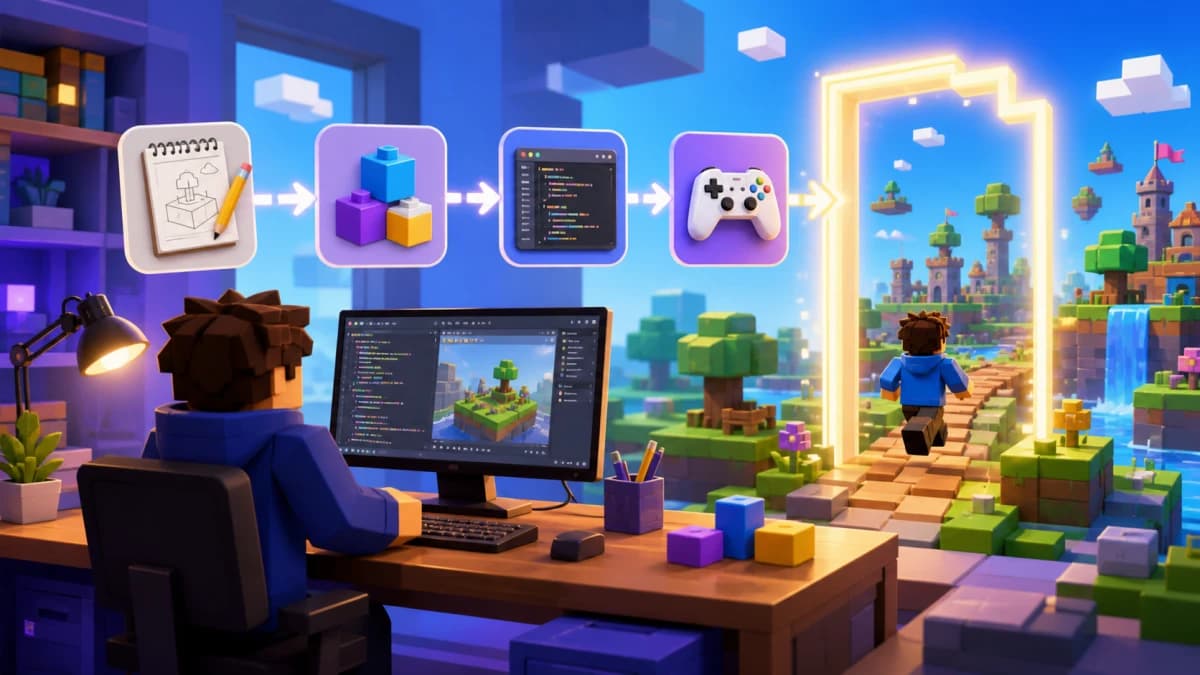
The most capable "plugin" in 2026 isn't technically a plugin at all. Browser-based AI builders like Obby generate the entire game — terrain, builds, UI, and every Luau script — from a text description, let you playtest in the browser, then export a .rbxlx file that opens directly in Roblox Studio. From there you keep building with Studio's normal tools, Assistant included.
Compared to in-Studio AI helpers, this approach has one decisive advantage: project-level context. A plugin sees the script you have open; Obby sees the whole game it built, so every new feature integrates with what's already there. Try Obby free and export your first AI-built game into Studio.
Which Roblox AI Helper Should You Use?
- Just need quick script help inside Studio: Roblox Assistant — free, zero setup.
- Want inline autocomplete while typing Luau: a scripting plugin, or Copilot if you work in VS Code with Rojo.
- Want a whole game or big systems generated: an AI builder like Obby, then polish in Studio.
- Specific niche tasks (texture gen, dialog writing): a focused Creator Store plugin with good reviews.
These combine well: many builders prototype in Obby, export to Studio, and use Assistant for small in-place tweaks. If you're new to Studio itself, start with our Roblox Creator Studio guide.
The Bottom Line
"Roblox AI plugin" in 2026 means an ecosystem, not a single install. Use Roblox Assistant for free in-editor help, vet Creator Store plugins before granting permissions, and reach for a full AI builder when you want more than snippets. Generate a complete game with Obby and open it in Studio →